

Let’s share your data using OneDrive!
Many people use Microsoft’s cloud storage service “OneDrive”. It’s convenient not only as a backup storage for your data, but also as a function for sharing data with others using. In this article, we’ll show you how to share data with OneDrive.
*Some companies have rules that prohibit sharing with external parties. Please check beforehand.
How to share data via OneDrive
Here is the step-by-step introduction of OneDrive data sharing.
Actions for the person sharing
- Place the file you want to share in the OneDrive folder. In this example, we’ll use one file, but you can also share a folder containing multiple files. In that case, place the folder you want to share in OneDrive.
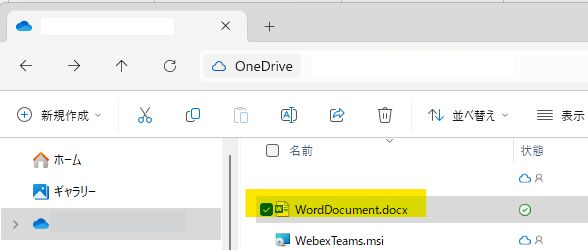
- Right-click > Select Share. The following window will appear. Once you’ve finished entering the information, press the “Send” button in the bottom right.
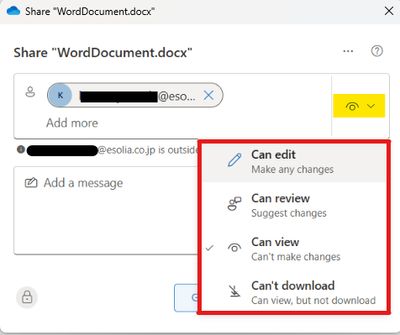
- Enter the email address of the person you want to share with in the upper window.
- Select the yellow highlighted eye icon to choose how you want to share with the other person. Choose according to your purpose. For example, select “Can edit” if you want to edit the data with the person you shared with. Or “Can view” if you don’t want them to edit it.
Actions for the recipient
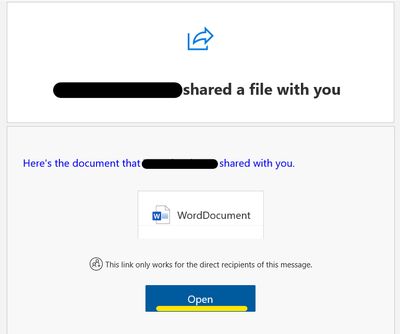
- You will receive an email like this, so press the blue “Open” button.
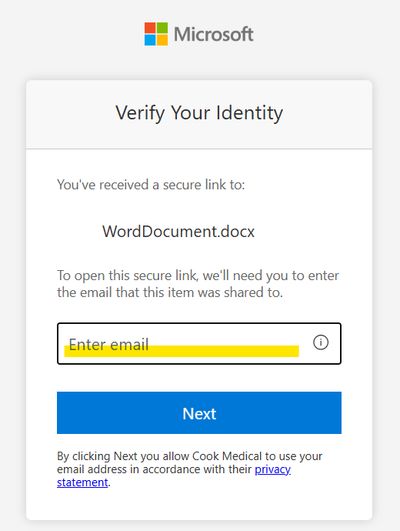
Microsoft will send you a verification code via email to your address. Check your email and enter the number.
Once you enter the correct verification code, you will be able to access and view the shared data.
Advantages of OneDrive
- You can send large data
OneDrive supports up to 250GB. (As of 2025) - You can set permissions
You can select how you want others to handle the shared data such as view-only or editable. - No risk of data loss or stolen
Since it does not use physical media such as USB sticks, there is no risk of physical leakage. It is sent as electronic data to only to the recipient over the Internet, so the data cannot be physically stolen by others.
Disadvantages of OneDrive
- Internet connection required
Unlike sharing data via USB, both ends need the Internet connection. - Both require a Microsoft account
In order to use OneDrive, both ends must have a Microsoft account.
That’s the summary of OneDrive sharing. It is very convenient when sending small data or exchanging data that will be edited multiple times in the future. Above all, its greatest strength is that no physical exchange is required. Please try it out.